
In this guide
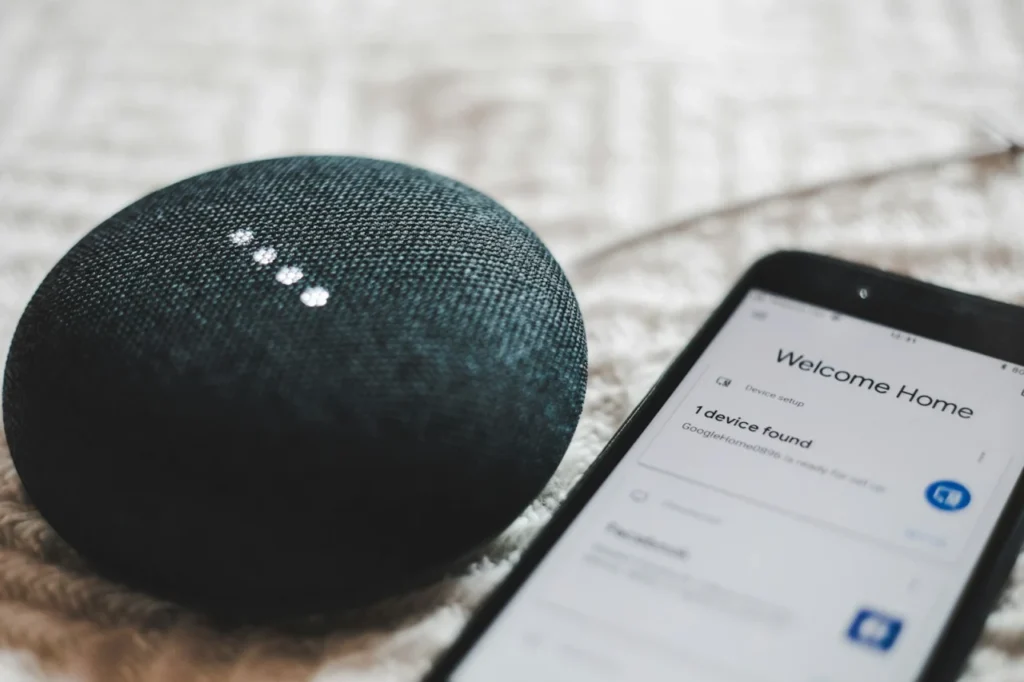
Short answer: use Apple Screen Time on iPhones and iPads, and Google Family Link on Android phones and Chromebooks. Both let you set daily limits, bedtime schedules, app permissions and content restrictions. Which one you use is decided by your child’s device, not by preference, and both work best alongside router-level filtering.
Handing a child their first phone is exciting and a little frightening. Fortunately, the two big phone makers include free tools to help. They do very similar jobs, but they work in different ways.
Apple Screen Time
Screen Time is built into iPhone and iPad. A parent uses Family Sharing to link the child’s device to their own and manages settings from their phone.
- Downtime. Sets a daily period, such as overnight, when only chosen apps and calls are available.
- App limits. Daily time limits for categories of apps or individual apps.
- Communication limits. Controls who the child can contact and when.
- Content and privacy restrictions. Limits on explicit content, purchases, downloads and settings changes.
- Ask to Buy. Purchases and downloads need approval from a parent.
Google Family Link
Family Link is a free app for parents, used to supervise a child’s Android device or Chromebook and their Google account.
- Screen time limits and bedtime. Daily allowances and a lock-out period.
- App approvals. The parent approves apps before they are installed.
- Content filters. Settings for Google Play, Chrome, YouTube and Google Search.
- Location. See where a supervised device is.
- Supervised accounts. For children under 13, the parent creates and manages the Google account.
Side-by-side comparison
| Feature | Apple Screen Time | Google Family Link |
|---|---|---|
| Works on | iPhone, iPad, Mac | Android, Chromebook |
| Bedtime or downtime | Downtime | Bedtime and device lock |
| App limits | Yes | Yes |
| Approve new apps | Ask to Buy | App approvals |
| Parent app | Settings and Family Sharing | Family Link app |
A simple setup plan
- Decide the rules first. Agree what is allowed, when, and what happens if rules are broken. Children accept limits better when they help shape them.
- Create the child’s account. For Apple, add them to Family Sharing. For Google, create a supervised account in Family Link.
- Set bedtime and school-day limits. Start strict and relax as trust builds.
- Restrict content. Set content and age ratings, and turn on purchase approvals.
- Protect the settings. Use a passcode only you know.
- Review every few weeks. Check the reports and adjust.
What these tools cannot do
They cover the phone or tablet. They do not cover the games console, smart TV or laptop, and they cannot do anything about content shown on a friend’s device. A layered approach adds router-level protection, which we explain in router versus app parental controls. Do not forget safe search, covered in our safe search and YouTube guide.
Settings that make sense at different ages
| Age | Suggested approach |
|---|---|
| Under 8 | Tight limits, approved apps only, purchases need your approval, device used in shared rooms |
| 8 to 12 | Daily limits and a bedtime lock, content restrictions on, location sharing agreed together |
| 13 and over | Longer limits and a later bedtime, review reports together, talk about why the rules exist |
Common problems and quick fixes
- Limits not applying. Check the child’s device is signed in to the right account and has the latest update.
- Child locked out at the wrong time. Review bedtime and downtime schedules, and set sensible exceptions for homework.
- Settings keep getting changed. Use a passcode only you know, different from the phone’s unlock code.
- A new app is not working. It may be waiting for approval in your parent app.
If your child is working out ways round the settings, read how to stop kids bypassing parental controls. HomeIT Services sets up parental controls across all the devices in your home, so the rules work everywhere. See parental controls and internet filtering, or contact us from Southend-on-Sea, Billericay or nearby.
Frequently asked questions
Family Link is designed for Android and Chromebooks, and a parent can manage it from an iPhone, but a child’s iPhone is better managed with Apple Screen Time.
The UK age of digital consent is 13. Under that age, a parent creates and supervises the account with Family Link.
It is protected by a Screen Time passcode only the parent knows. Keep the passcode private and use a different one from the phone’s unlock code.
No. They cover the phone or tablet only. Consoles, smart TVs and computers need their own settings or router-level controls.
Both include family location sharing, and Family Link includes location tools for supervised devices. Talk to your child about why you use them.
Rather have it done properly?
Get a clear, fixed quote from a local engineer before any work starts.